
How to set up the Google Ad Conversion Action
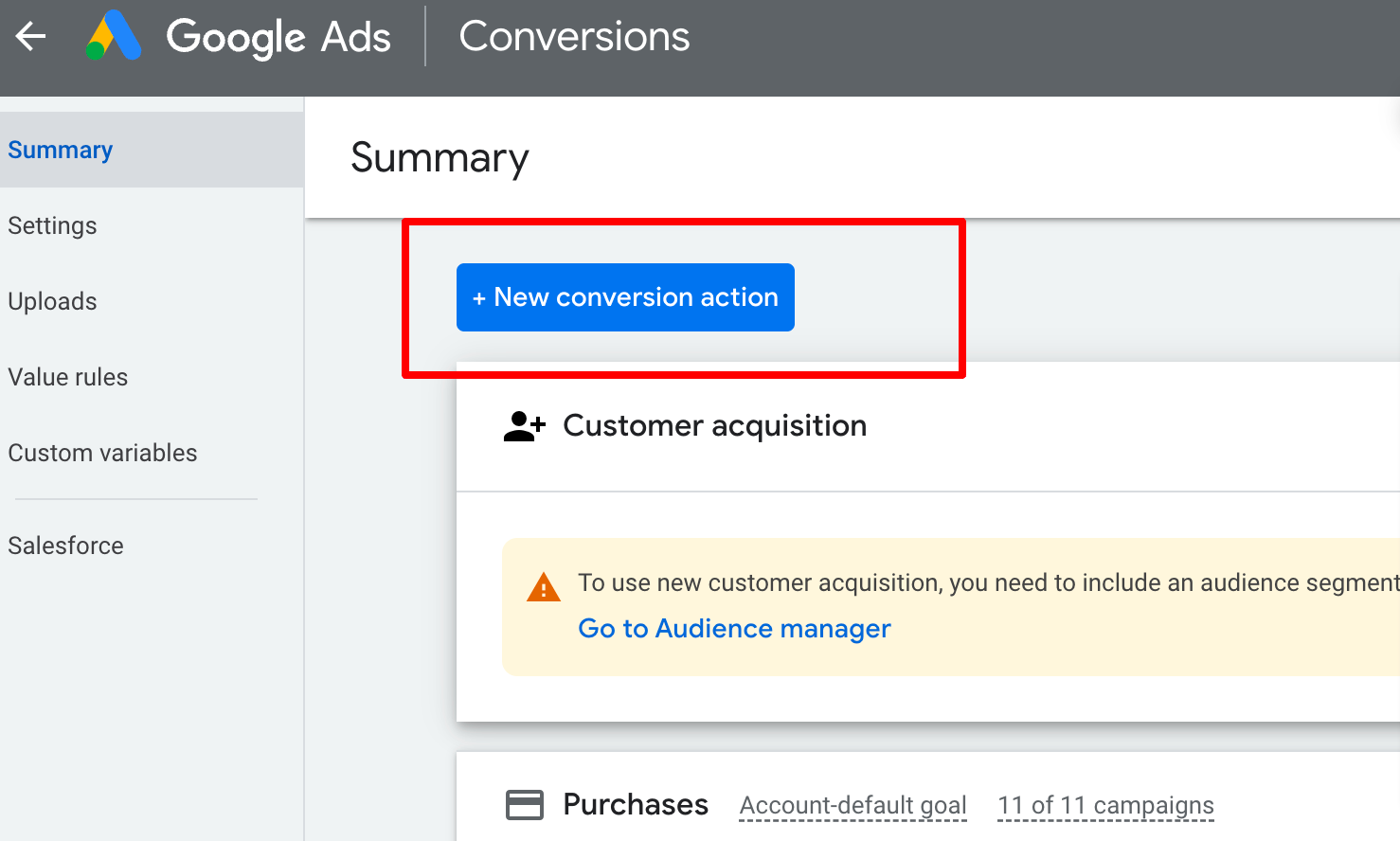
Step 1: Head into your Google Adwords account and click on the Tools and Settings tab. Click on Conversions in Tools and Settings
Click the “+ NEW CONVERSION ACTION”
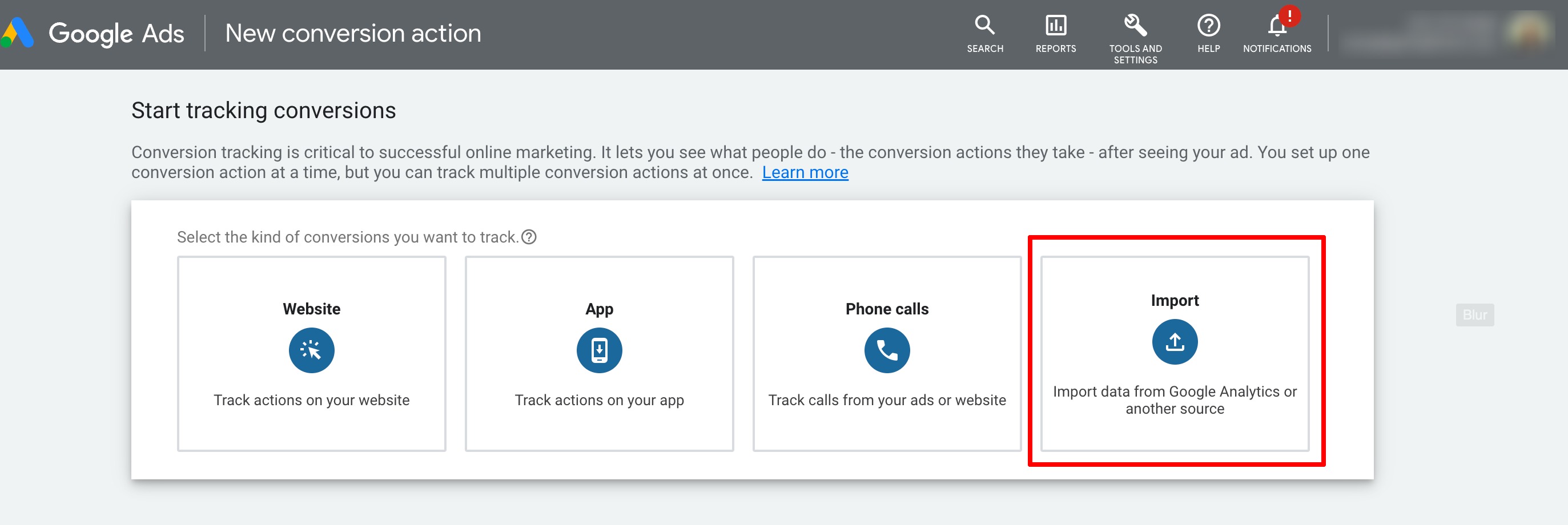
To start tracking conversions, we need to choose the import option.
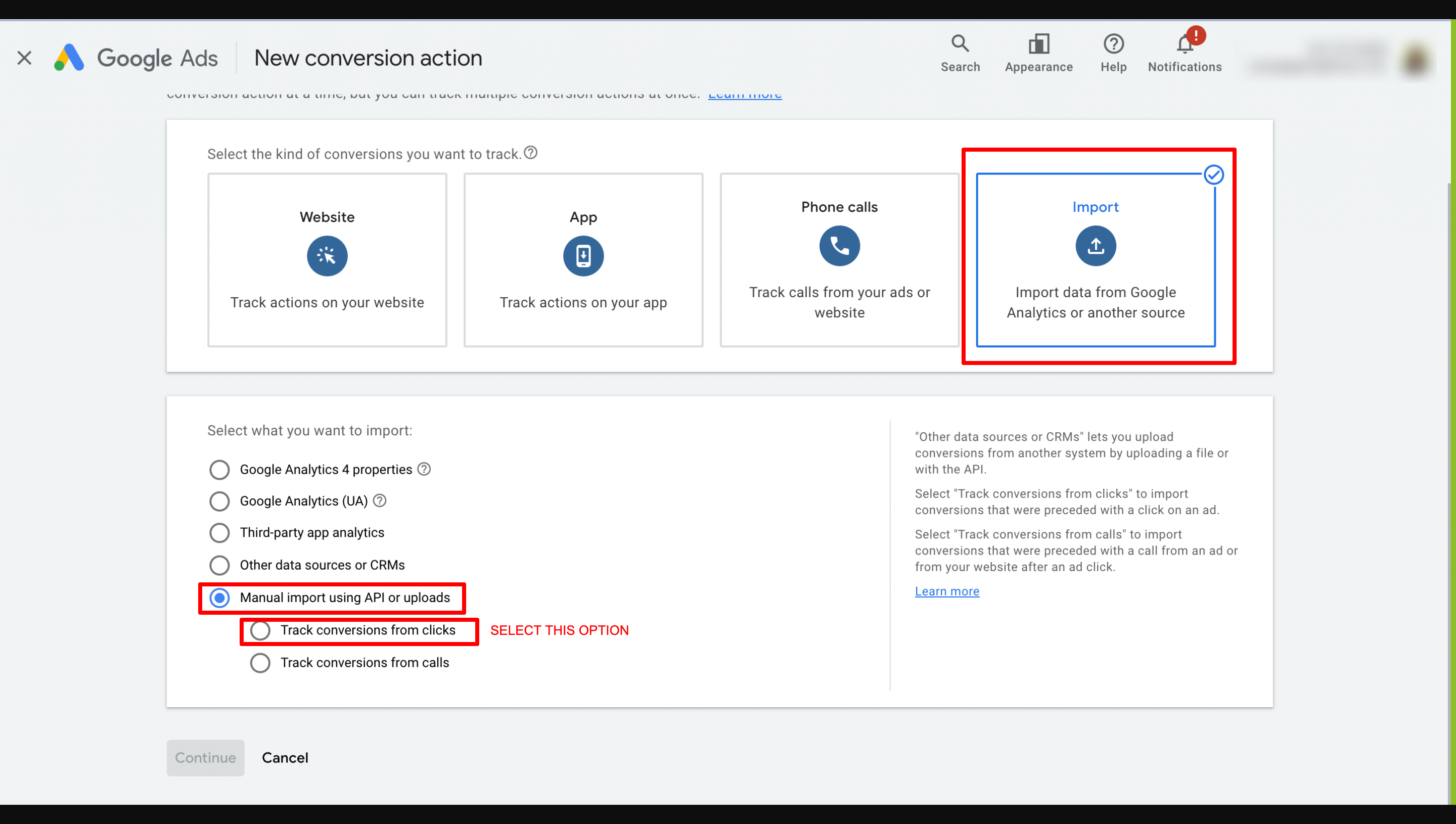
In Older version, Select “Other data sources or CRMs“

In Newer version, Select “Track conversions from clicks“
Step 2: let’s set up the Conversions goals
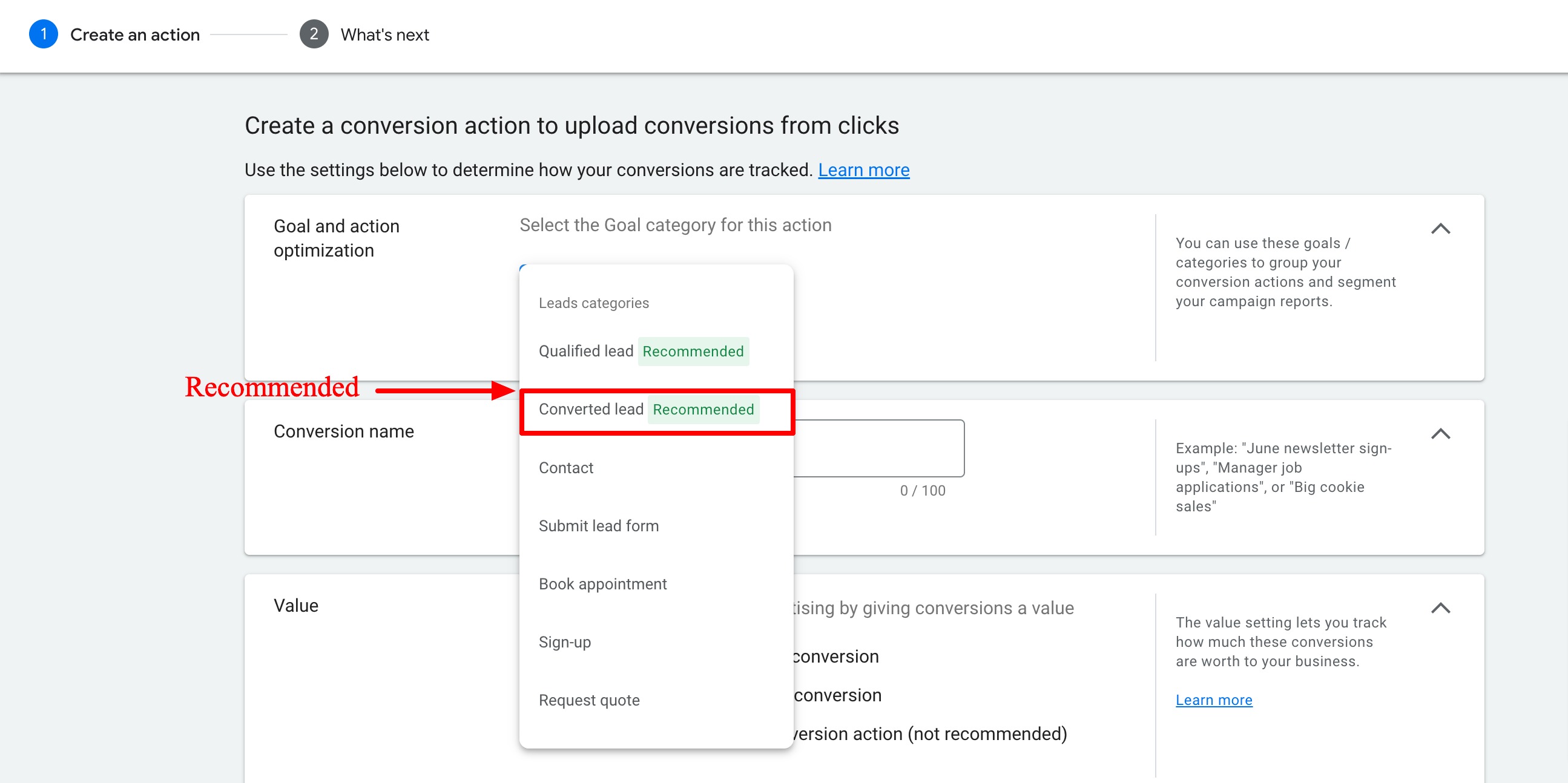
Select “Converted Lead” as the Primary option for the Goal and action optimization section below.
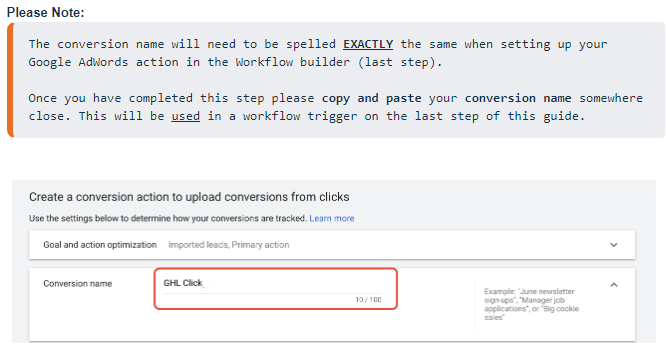
Step 3: Let’s give the Conversion a Name
Please type in the name of your conversion. In this example, we are calling it “GHL Click“.
Step 4: Select the value for your conversion.

Select the count, we would recommend always choosing option “one”.

Step 5: Setup the conversion window and attribution model
1. Set the click-through conversion window to “90 days”
2. Next, set the Attribution model as “First click” or “Latest click” (recommended)… more info

Step 6: Now let’s create the Workflow in the System
Workflow can be created for Form Submission, Order Purchases, Incoming Phone Call, Number Pool Calling, Survey Submission, and Chat Widget.
Please Note: Every time you create a new campaign in Google, you will need to select “other” as your Google Adwords option in your new workflow.
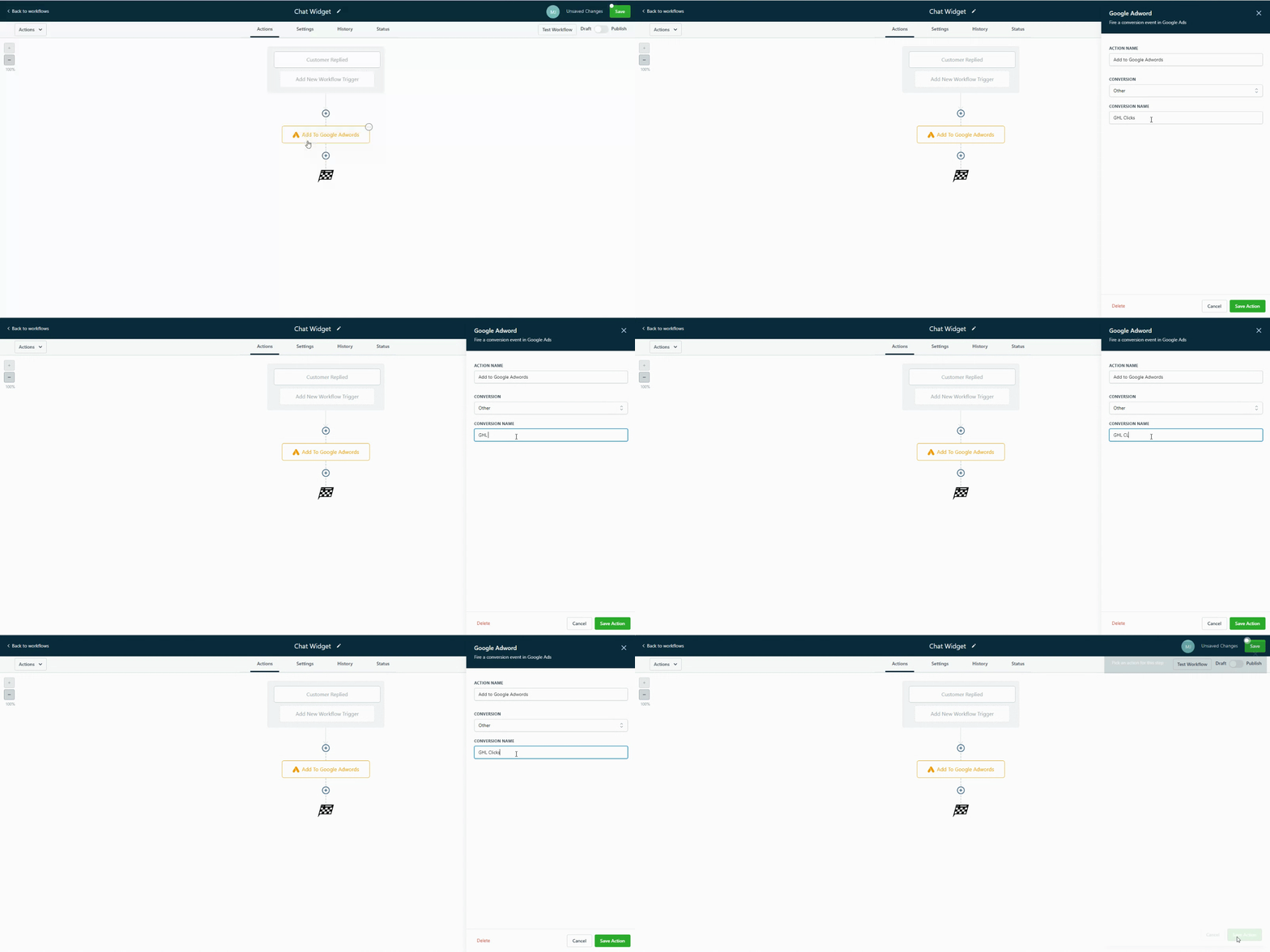
It will take 24 hours once we receive one contact with UTM source and gclid to get the list populated in workflow trigger as well as in Google Adwords Conversion.
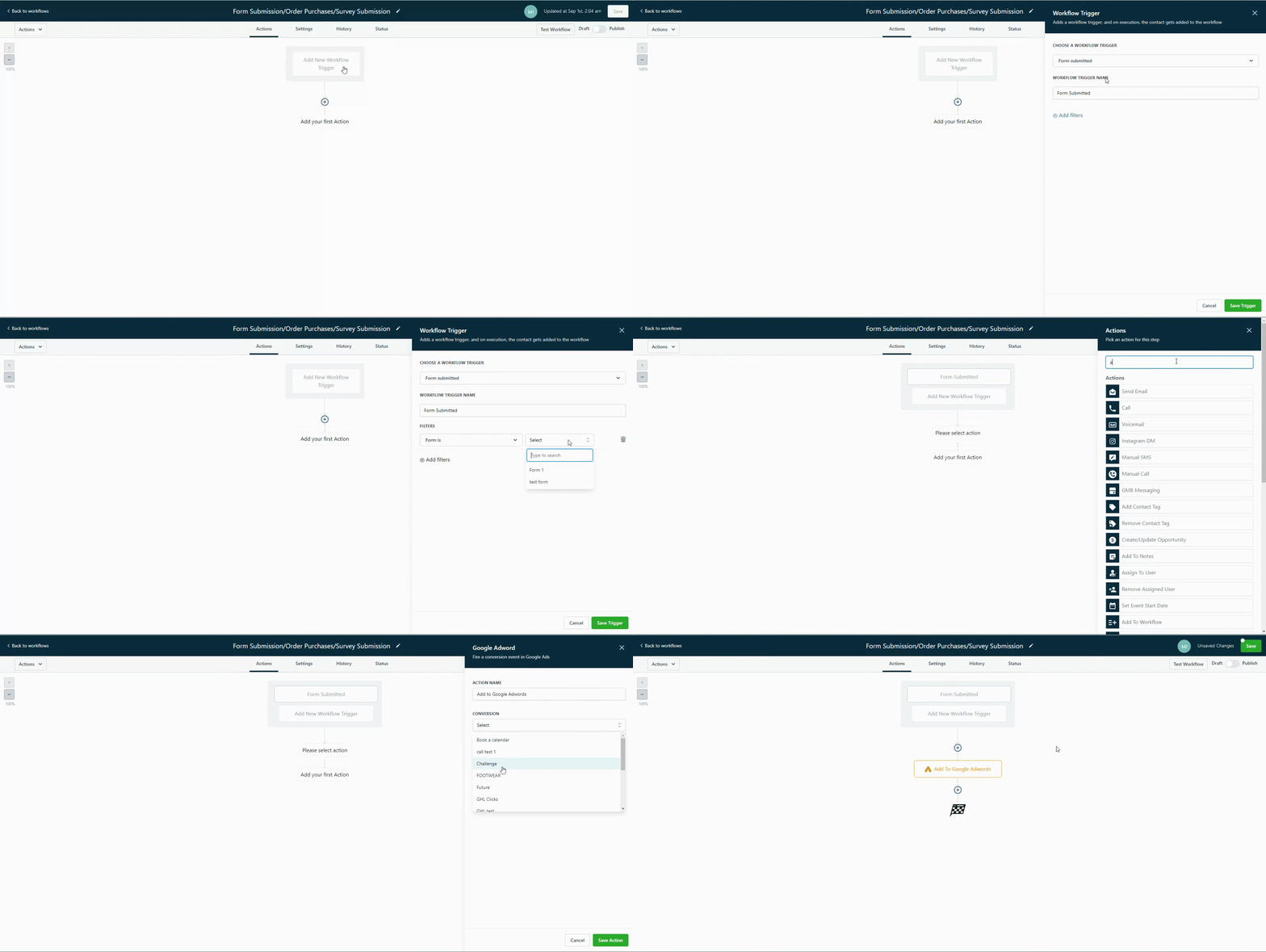
Form Submission/Order Purchases/Survey Submission
- Create the Workflow
- Select the trigger – Form Submission, Order Form Submission, or Survey Submission
- Once the trigger is selected, add the filters with which the Form/ Order Form/ Survey and save the trigger details
- Click on the plus icon action and select the “add to Google Adwords” event and select “Other“. Please paste the “Conversion Name” that was created in Google Adwords exactly as it is spelled.
- Please click “Save” and “Publish” your workflow
Incoming Phone Call
- Create the Workflow
- Select the trigger – Call Status
- Once the trigger is selected, add the filters with Call Direction > Incoming and Phone Number > Select Phone Number > Save (It is necessary to create separate phone number and pool number action)
- Click on the plus icon action and select the “add to Google Adwords” event and select “Other“. Please paste the “Conversion Name” that was created in Google Adwords exactly as it is spelled.
- Please click “Save” and “Publish” your workflow

Number Pool Calling
- Create the Workflow
- Select the trigger – Call Status
- Once the trigger is selected, add the filters with Call Direction > Incoming and Pool Number > Select Pool Number.
- [Please add the pool number script on the funnel/website in header settings]
- Click on the plus icon action and select the “add to Google Adwords” event and select “Other“. Please paste the “Conversion Name” that was created in Google Adwords exactly as it is spelled.
- Please click “Save” and “Publish” your workflow

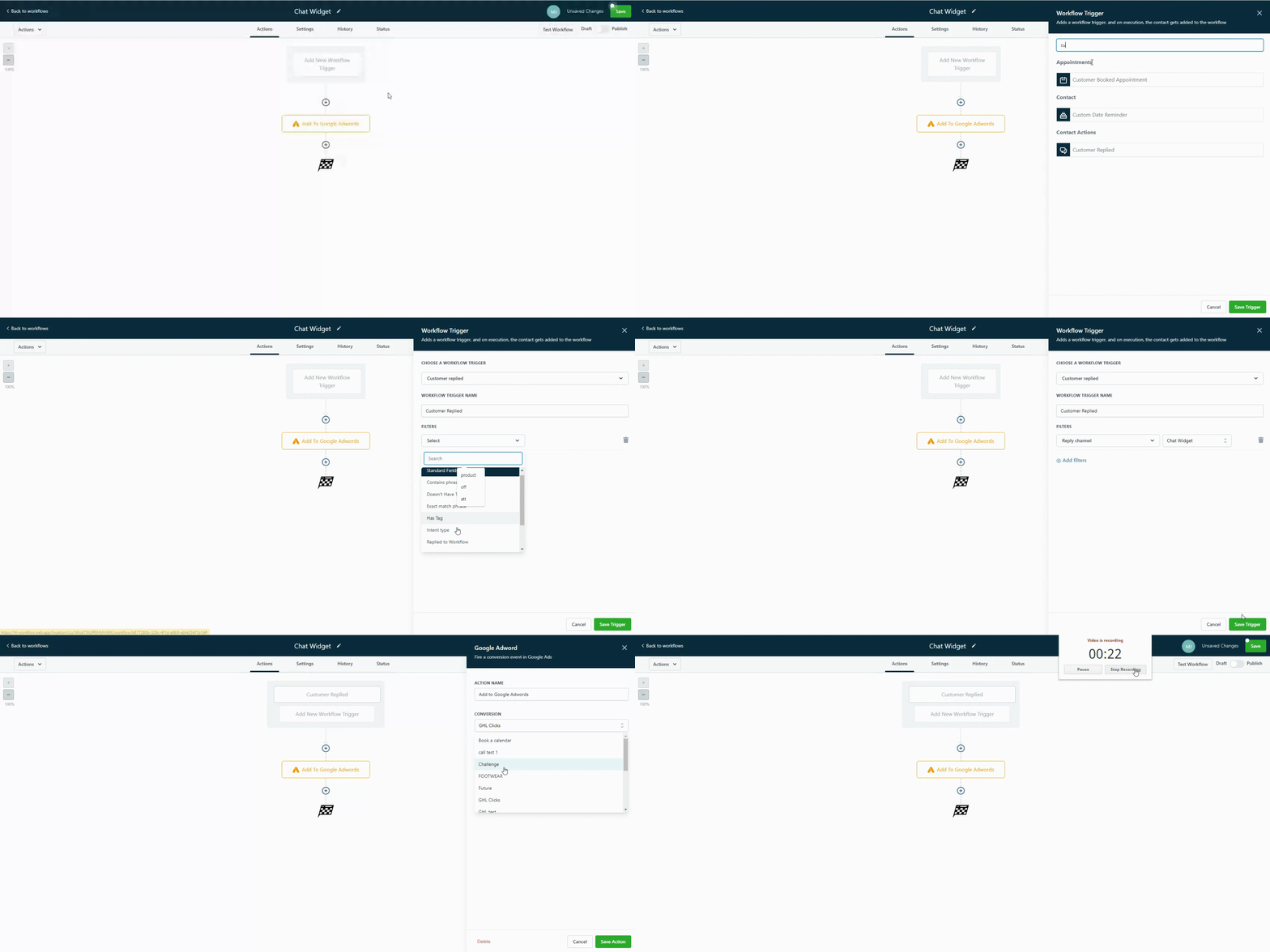
Chat Widget
- Create the Workflow
- Select the trigger – Customer Replied Trigger
- Click on the plus icon action and select the “add to Google Adwords” event and select “Other“. Please paste the “Conversion Name” that was created in Google Adwords exactly as it is spelled.
- Please click “Save” and “Publish” your workflow
Troubleshooting
I have set up my conversions now how do I know it’s working?
Currently, there is no way to test this event. You can always check your workflow action and check out the history tab. It should show the execution for Google Adword Action.
Where can I see my conversions?
It will take 24 hours exactly to get the list populated in trigger/workflow as well as in Google Adword Conversion. Within the 24-hour window, you can check the workflow history
Does this work with all triggers?
It only works for Form Submission, Order Purchases, Incoming Phone Call, Number Pool Calling, Survey Submission, and Chat Widget.